You can import videos and photos recorded on your camera by connecting your camera to your Mac using Wi-Fi.
Before Use
- To use a Wi-Fi connection, you must first register the access point on your camera. Refer to the Operating Guide supplied with your camera for more information.
Setting up Wireless Auto Import
-
Select MENU -
 (Settings) -
  (Main Settings) - [USB Connect Setting] - [MTP] on the LCD screen of your camera.
-
Connect the camera to your Mac with a USB cable.
-
Start Finder and click [Applications], and then double-click [Wireless Auto Import].
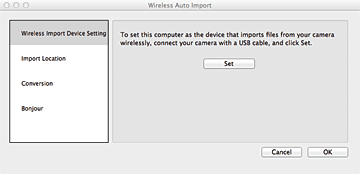
The [Wireless Auto Import] settings window is displayed.
-
Click [Wireless Import Device Setting] - [Set], and then set your Mac as the import destination for videos and photos.
-
Disconnect the camera from your Mac, and then select MENU -
(Settings) - (Main Settings) - [USB Connect Setting] - [Auto] on the LCD screen of your camera.
Importing videos and photos from your camera to your Mac
-
Start up and log in to your Mac.
-
Select MENU -
 (Send to PC) on the LCD screen of your camera.
When the Wi-Fi connection is established, video and photo import starts automatically, and a progress indicator is displayed at the bottom right of the screen on the Mac.
(Send to PC) on the LCD screen of your camera.
When the Wi-Fi connection is established, video and photo import starts automatically, and a progress indicator is displayed at the bottom right of the screen on the Mac.
When the data import is completed, a message is displayed on the Mac.
Note
- If there is no memory card in your camera, (Send to PC) will not be displayed on the screen in step 2 above.
Parts and controls of the settings window
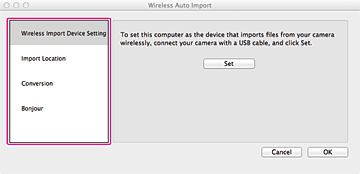
| [Wireless Import Device Setting] | Set your Mac as the device for importing files using Wi-Fi. |
| [Import Location] | Select the destination folder for saving videos and photos that you have imported to your Mac. |
| [Conversion] | Set whether to convert the AVCHD format videos imported to your Mac to MP4 format videos. Even when you convert the AVCHD format videos to MP4, AVCHD format videos will also be saved in the destination folder. |
| [Bonjour] | Reconfigure the Wi-Fi connection between your Mac and camera again. If your Mac does not respond when you select MENU - (Send to PC) on the LCD screen of your camera, cancel the file import and then try again following the steps below.
|
On trademarks
- Mac is a trademark of Apple Inc.