

- Visual Story
- How to use
- 4. Second steps on the day of shooting - Story gallery creation and delivery (Android)
 Visual Story
4. Second steps on the day of shooting - Story gallery creation and delivery (Android)
Prepare final story galleries for client delivery from the images you selected by the Visual Story app.
The following steps are done in a browser.
Clients can browse story galleries and download the images. If a slideshow is created, they can also download it.
- To add or remove images or edit titles, dates or other information, use Visual Story again.
3-8. Changing initial settings later
4-1. Story gallery for editing
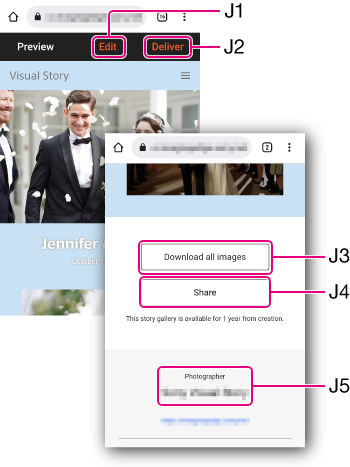
- J1 Edit: Enables editing of story gallery settings (such as background color and slideshow music).
4-2. Edit - J2 Deliver: Publishes the story gallery and shares it with the client.
4-3. Deliver - J3 Download all images: This feature is for clients. On this screen, it has no effect.
- J4 Share: This feature is for clients. On this screen, it has no effect.
- J5 Photographer: Identifies the photographer.
4-2. Edit
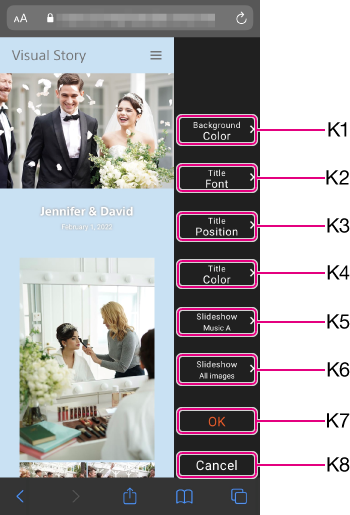
Complete story gallery settings (such as background color and music).
- Tap any item from K1 - K6 to complete the setting.
- After editing, tap [Save].
- K1 Background Color: Choose a background color.
- K2 Title Font: Choose a title font.
- K3 Title Position: Choose a title position.
- K4 Title Color: Choose a title color.
- K5 Slideshow: Creates a slideshow and enables you to choose the music.
Off : No slideshow will be created.
No music : Creates a slideshow without music.
Music A : Creates a slideshow with Music A.
Music B : Creates a slideshow with Music B.Slideshow music can be reviewed as follows.
Review the music - K6 Slideshow Images: Choose images to use in a slideshow.
Highlights: Only images specified as highlights will be used in the slideshow.
All images: All images in the gallery will be used in the slideshow. - K7 Save: Saves and exits editing.
- K8 Cancel: Cancels editing.
4-3. Deliver
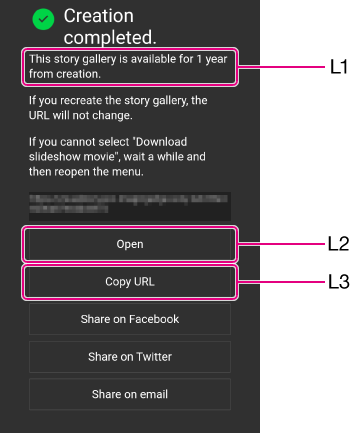
After all tasks are finished with the story gallery for editing purposes, submit the story gallery to clients.
- Tap J2 Deliver.
- The client story gallery is now published. After the gallery goes online, a message is displayed saying [Creation completed].
- To view the gallery, tap [Open] L2.
- Tap [Copy URL] L3 to copy the link.
- Paste the link into a message or other client communication to notify clients of the story gallery URL. At the same time, please mention to them that the gallery is valid for 1 year. L1.
- The client story gallery cannot be edited.
To introduce Visual Story and provide instructions, direct your clients to the following page.
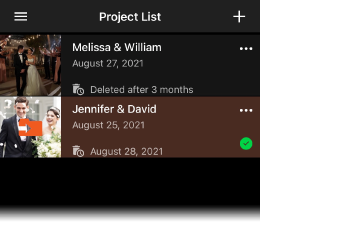
Once story galleries are published,  is displayed next to that project.
4-4. Story gallery deletion
Story galleries delivered to clients are automatically deleted after the expiration date. If for some reason you wish to delete story galleries (make them inaccessible) before this date, do the following.
- Sign in to My Page.
5-1. Sign in to My Page - Delete the project in the Visual Story project information section.
