

- Visual Story
- How to use
- 1. Initial setup (Android)
 Visual Story
1. Initial setup (Android)
Before you can start using the Visual Story app and service, you must complete the initial setup, including Imaging Edge membership registration.
1-1. Install Visual Story on your mobile device.
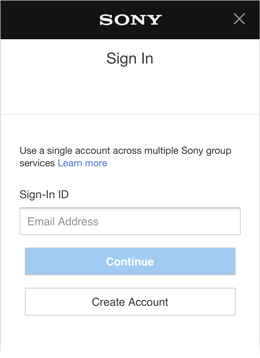
1-2. Start Visual Story and follow the instructions to complete Imaging Edge membership registration or sign in to your account.
1-3. Set whether images are uploaded to the cloud when you are not connected via Wi-Fi.
- Select [Wi-Fi Only] or [Always].
- Each image uploaded to the cloud takes up about 1 MB of data.
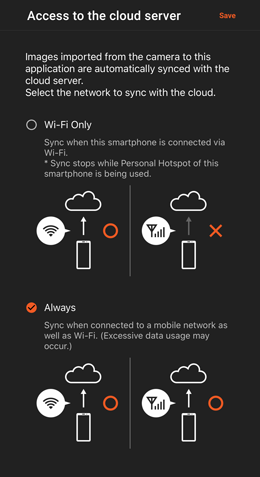
1-4. Tap [Save] to save the information.
The project creation screen is displayed.
To change the initial settings later
